What you need before you start
Have these ready and the sign-up will go smoothly. You will need your first and last name, which becomes the name people see when you send mail, and your date of birth. Google requires you to be at least 13 years old in most countries; a younger child can only have an account a parent sets up and manages through Family Link. A mobile number is handy but not always required — Google lists it as optional, though it sometimes asks for one to confirm you are a real person. A second email address, if you already have one, is useful as a recovery address. Every free account comes with 15 GB of storage, shared between Gmail, Google Drive and Google Photos.
Create a Gmail account on a computer
1. Open your browser and go to accounts.google.com/signup. You can also open gmail.com and click "Create account".
2. Click "Create account" and choose "For my personal use". The other choices are "For my child" and "For work or business".
3. Type your first and last name, then click Next. The last name is optional.
4. Enter your birthday and gender, then click Next.
5. On the "Choose your Gmail address" screen, pick one of the addresses Google suggests from your name, or select "Create your own Gmail address" and type the username you want. Usernames must be 6 to 30 characters long and can use letters, numbers and periods.
6. Create a password of at least 8 characters, type it again to confirm, and click Next. A mix of upper and lower case letters, numbers and symbols makes it much harder to guess.
7. Add a phone number and a recovery email if you are asked, or skip them if the form allows it. Then read the terms and privacy policy and click "I agree". Your inbox is ready.
Create a Gmail account on a phone
On an Android phone or iPhone, the easiest way is through the Gmail app. Install it from the Play Store or App Store if it is not already there, open it, and tap "Create account" — or tap your profile picture at the top right and choose "Add another account", then "Google". From there the steps are the same: name, birthday, address, password, and the optional phone check. On Android you can also go through Settings, then "Passwords & accounts" or "Accounts", tap "Add account", choose "Google", and tap "Create account". On an iPhone, the same flow is available in the Gmail app, or through Settings, then "Mail", then "Accounts", then "Add Account" and "Google".
Picking a good Gmail address
The address you choose will follow you for years, so it is worth a minute of thought. Your own name, or your name with a number, is the safest choice — it looks professional on a job application and is easy for others to remember. If the name you want is already taken, Google will suggest close alternatives; adding a number or a period usually does the trick. Avoid addresses that share too much personal detail, such as your full birth date, and avoid anything you would be embarrassed to put on a CV. You can use dots in the address or add a plus tag — for example, yourname+shopping@gmail.com still reaches your inbox — but the address itself cannot be changed once the account is made.
Securing the new account straight away
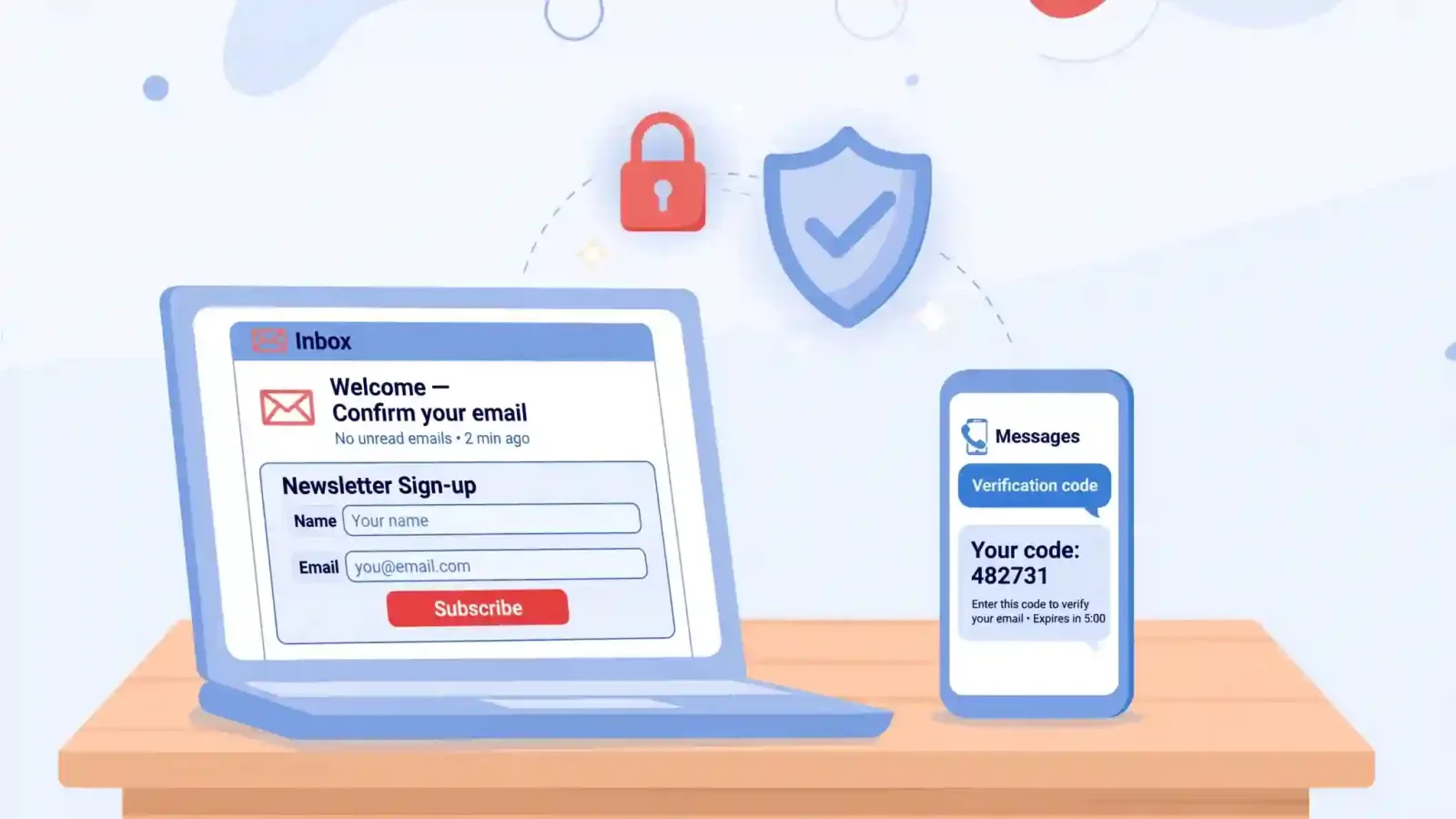
A fresh account is worth protecting in the first ten minutes. First, add a recovery phone number and a recovery email at myaccount.google.com, under Security — these are how you get back in if you ever forget the password. Second, turn on 2-Step Verification in the same Security section; after that, signing in on a new device also needs a code from your phone. You can also set up a passkey there, which lets you sign in with your fingerprint or face instead of a password. Finally, never share your password or any six-digit code Google sends you. Google will never ask for your password by email or phone call, and anyone who asks for a code is trying to take over the account.
Common problems and how to fix them
If your chosen username is taken, try one of Google's suggestions or add a number — millions of accounts already exist, so this is normal. If Google insists on a phone number even though the form calls it optional, there is no way around that check on that attempt; try again from your home internet connection without a VPN, or use a number you can receive a text on. If you see an error about too many accounts, wait a day before trying again, because Google limits how many accounts can be made from one device or connection in a short time. And if Google suspects the account holder is under the minimum age, the owner has 14 days to update the age information, or the account will be disabled.
Adding a second Gmail account
Many people keep one address for personal mail and another for work or online shopping. On a computer, click your profile picture in the top-right corner of Gmail, choose "Add another account", and either sign in or click "Create account" to make a new one. On the Gmail app, tap your profile picture and choose "Add another account", then "Google", and follow the same steps. You can switch between accounts from the same profile menu without signing out.
Frequently asked questions
Is creating a Gmail account free? Yes. A Google account and a Gmail address cost nothing, and the 15 GB of storage is included.
Do I need a phone number to create a Gmail account? Not always. Google lists the phone number as optional, but it may still ask for one if it suspects spam or unusual activity. Adding a number also makes recovery much easier later.
Can I create a Gmail account for my child? Yes, through the "For my child" option, which a parent sets up and manages with Family Link.
Can I use an existing email address instead of a Gmail address? Yes. During sign-up, choose "Use your existing email", enter the address you already have, and confirm it with the code Google sends there. You still get a Google account, just without a new Gmail address.
What if I forget the password later? Go to the Google sign-in page, click "Forgot password", and follow the recovery steps using your recovery phone or email. That is why adding them at the start matters so much.